
 admin
admin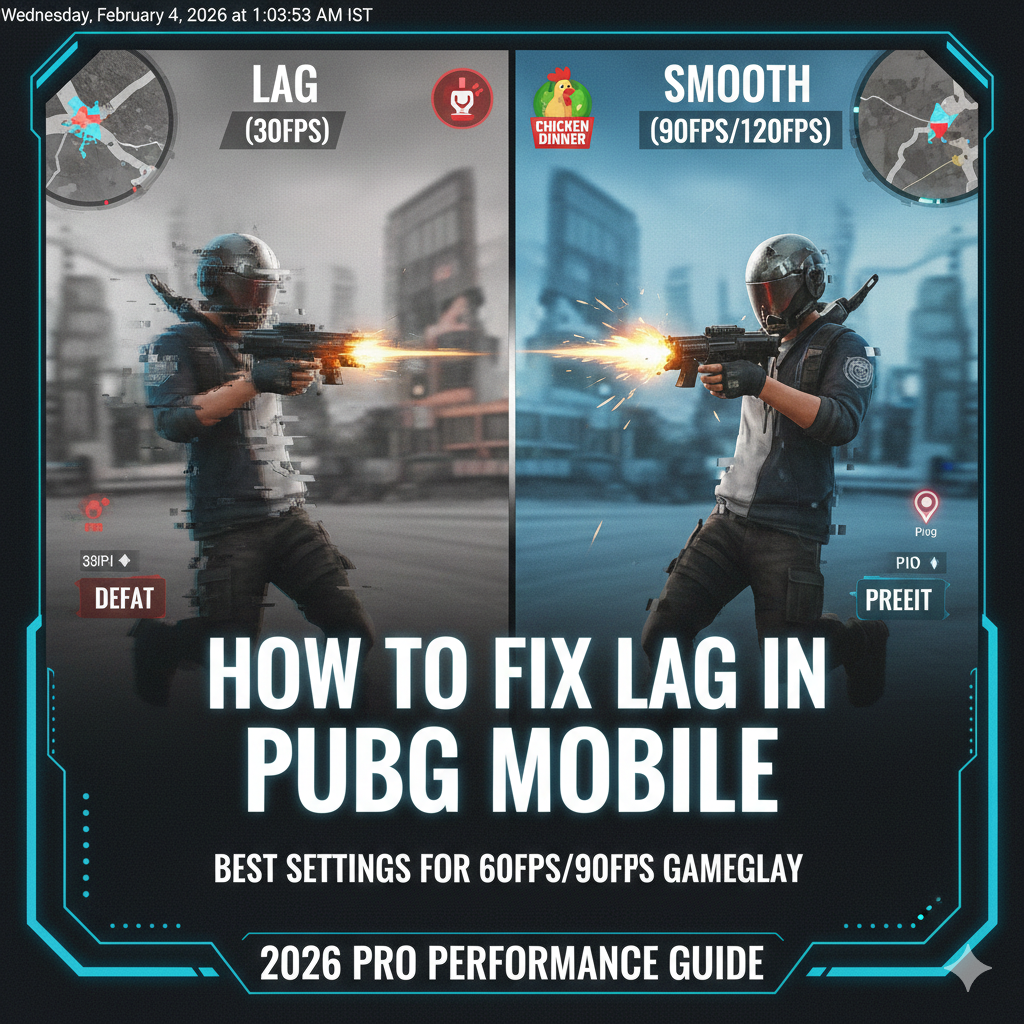
1. Best In-Game Graphics Settings for Zero Lag
Visuals look great, but in ranked matches, performance is king. Follow these settings to maximize your frame rate.
Basic Graphics Configuration
- Graphics: Set to Smooth. Never use HD, HDR, or Ultra HD for competitive play, as they cause thermal throttling.
- Frame Rate: Set to the highest available (Extreme for 60FPS or 90 FPS / Extreme+).
- Style: Use Colorful or Classic. These styles provide the best enemy visibility without heavy processing.
- Anti-Aliasing: Disable. This is a major resource hog that drains battery and causes lag.
- Shadows: Disable. It improves FPS and makes it easier to spot enemies hiding in dark corners.
Advanced Performance Settings
- Auto-Adjust Graphics: Disable. If this is on, the game will constantly change your settings mid-fight, leading to stutters.
- Brightness: 125% – 150% (Helps in spotting enemies without high graphics).
- Non-Standard Screens: Set to 0 to ensure the UI doesn’t overlap or cause rendering issues.
2. Pro Device Optimization (Android & iOS)
Software bloat and heat are the two biggest “lag monsters.” Use these tweaks to give your game more “breathing room.”
Android Developer Options Tweaks
- Go to Settings > About Phone > Tap Build Number 7 times.
- Enter Developer Options and enable these:
- Force 4x MSAA: Keep this OFF (It kills performance).
- Background Process Limit: Set to At most 3-4 processes.
- Force GPU Rendering: Enable (Only on older Android versions).
- Graphics Driver Preferences: Set BGMI/PUBG to “System Graphics Driver.”
Thermal Management (Heat Control)
In 2026, mobile processors are powerful but get hot quickly. When a phone heats up, it throttles (slows down) to cool off, causing FPS drops.
- Remove Phone Case: Let the heat escape.
- Play Near a Fan: Or use a Phone Cooler (highly recommended for 90FPS gaming).
- Don’t Charge While Playing: Charging generates massive heat, leading to instant lag.
3. Network and Storage: The Silent Lag Killers
High ping or “stuttering” is often caused by a cluttered phone or unstable internet.
Fixing Ping and Network Lag
- Disable Auto-Sync: Turn off Google Drive, iCloud, or Gallery syncing in the background.
- 5GHz Wi-Fi: If your router supports it, hamesha 5GHz use karein. 2.4GHz Wi-Fi Bluetooth ke saath interfere karta hai.
- Repair Tool: Use the in-game Repair button on the login screen once a month to clear corrupted data.
Storage Maintenance
- Free Space: Always keep at least 10GB to 15GB of free storage. If your storage is 90% full, the system slows down the read/write speed of the game files.
- Clear Cache: Weekly Clear Cache (Settings > Apps > BGMI/PUBG) karein.
Conclusion: By combining Smooth + Extreme settings with proper thermal management, you can achieve a stable, lag-free experience even on mid-range devices. Consistent FPS is the secret weapon of every Conqueror player.